Product guide
Check a microphone in the input lab
A short walkthrough of the separate local microphone test interface.
Local microphone prototype. The reported real input problem remains unresolved.
Check a microphone in the input lab
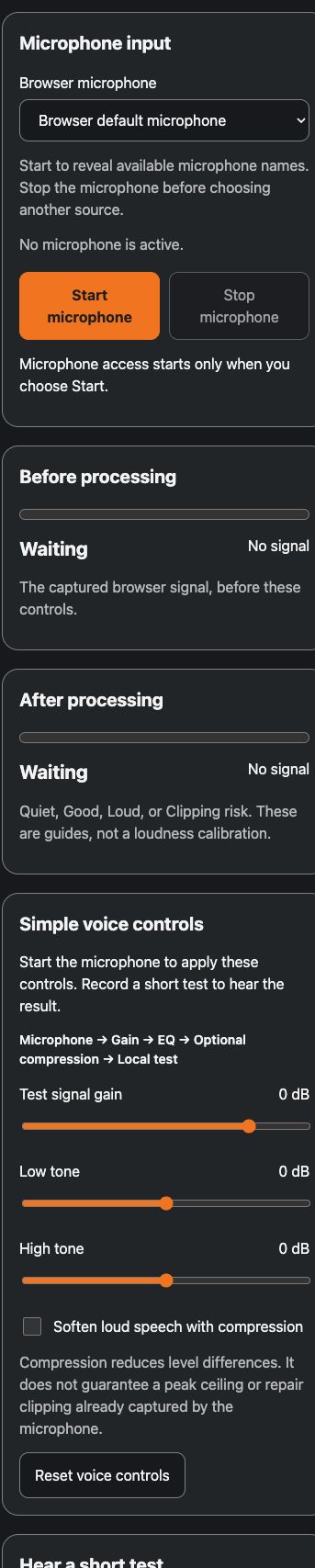
Find the source and explicit Start and Stop controls.
An owner supplied local preview on your own device. The reported real microphone problem remains unresolved.
- Read the microphone source label and keep the current default unless you intend to change it.
The source selector shows which browser input will be requested.
- Choose Start microphone only when you want capture. Approve the browser prompt yourself.
A working microphone should show live meters below. This real signal path has not been verified in this review.
- Choose Stop microphone when finished. If meters never move, check the visible permission or input message.
Capture stops. No audio is uploaded by this local lab.
You know where capture starts and stops. A real signal result still needs user verification.
If something goes wrong
The meters do not move. Check the visible source and status after deliberately starting capture. Stop before choosing another input. The reported real microphone issue remains unresolved.
The test disappeared after leaving the page. Hiding or leaving releases capture and deletes the test. Keep the page visible and deliberately start a new test.
Changing controls does not change an existing test. Record a new test to hear new settings. Playback remains a separate action.
Security and privacy
Start microphone only when you want capture, and approve the browser prompt yourself. Avoid recording private conversations or other people without their permission. The prototype uses this browser’s input and temporary memory for its bounded test, with no account upload.
Stop releases capture. Hiding or leaving the page releases capture and clears tests. Changes affect new recordings in this page only. Real microphone signal and sound behavior remain unresolved in the reported setup.
Read the security guideMore product information and background
Available pages
- Input lab
Local prototype only. Not a released hosted app.
How to use it
Read the availability label first. Actual app use requires approved access when released. Local demonstrations use fictional records.
- In an owner supplied review, inspect the connection and status labels before changing anything.
- The headset screen can display unknown values. Do not assume a selected sound card has changed the device.
- For the separate input lab, choose Start microphone only when you want capture and approve the browser prompt yourself.
- Set the voice controls before making a short test. Choose playback yourself. Later control changes require a new recording.
- Stop capture and delete the temporary test when finished.
What to expect
The interface shows what is known, what is a preview and what is still unavailable. No microphone, playback or device operation was performed to create these screenshots.
One deliberate test of up to 15 seconds can stay temporarily in browser memory. No audio is uploaded or saved to an account. Stop releases capture. Hiding or leaving releases capture and deletes tests.
Things to know
- The lab uses the microphone on the device running the browser. A phone page does not capture the Mac microphone.
- Start and Record are explicit. A deliberate processed recording is bounded to 15 seconds and stays in memory, without upload or persistent storage.
- Stop releases capture. Hiding or leaving the page releases capture and deletes tests. Return to the visible page and choose Start again for a new test.
- Gain, two shelf EQ controls and optional compression affect only this page’s captured signal. Existing clips require a new recording after settings change.
- There is no live monitoring, native system microphone routing, noise gate, RNNoise, ceiling limiter, voice effects or connected account library.
- Real microphone signal and sound behavior remain unresolved in the reported setup. Software checks alone do not establish a working physical input.
Getting help
The meters do not move.
Check the visible source and status after deliberately starting capture. Stop before choosing another input. The reported real microphone issue remains unresolved.
The test disappeared after leaving the page.
Hiding or leaving releases capture and deletes the test. Keep the page visible and deliberately start a new test.
Changing controls does not change an existing test.
Record a new test to hear new settings. Playback remains a separate action.
Public guide version 2026-10-03.6.1. Reviewed 2026-10-03.