Account sign in and preferences. App availability varies.
Find your account and understand access
Find your account and understand which apps it can open.
Use your own account and an available sign in option.
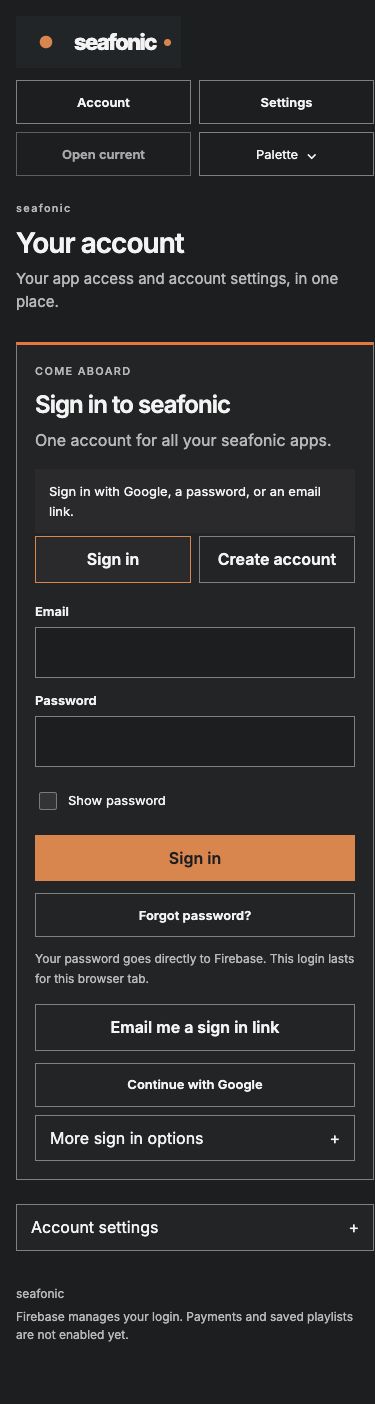
The current sign in page on a phone, captured October 10, 2026. No account information was entered. Access to each app remains separate from signing in.
Open the sign in area on the Account page.
Available sign in methods appear when secure login is ready.
Choose Sign in, or Create account if you need an account. Enter your password only on the genuine account page.
The account page verifies your sign in.
Check whether the app you want to use is available to your account.
App access is separate from being signed in. Unavailable apps remain unavailable.
You understand your account entry and the app’s availability.
If something goes wrong
Secure login is still connecting or unavailable. Do not repeatedly submit credentials. Wait for the account service to be available and report the visible message.
A Save button is disabled. Sign in must complete before protected data can load. App access is a separate approval.
Retained information
Your account keeps sign in information, names and preferences. Signing out does not delete the account.
Reviewed 2026-10-03.
Your account
Information
Sign in identifiers
Private account name and optional public display name
Service visibility and app access records
Purpose
Recognize your account and keep your choices.
Who can access it
Account services and authorized operators. Your public display name may appear when public participation becomes available.
Retention
Records have no general automatic deletion date. A complete self service account deletion process is not available yet.
Current state
Account information and preferences.
Your browser
Information
Sign in session
Appearance preference
Temporary profile inputs
Purpose
Keep you signed in and display your choices.
Who can access it
The account page and your browser profile.
Retention
The portal session ends when you sign out or its browser session ends. Appearance remains until changed or site storage is cleared. Connected apps can have separate sessions.
Current state
Browser account use.
Sign in provider and service operation
Information
Firebase sign in information
Service delivery information and backups
Purpose
Authenticate your account and operate the service.
Who can access it
The sign in provider, hosting service and authorized operators.
Retention
Provider policies apply. Clearing a name or signing out does not remove all provider records or backups. The complete service log and backup deletion periods are not yet documented.
Current state
Account and provider services.
What still needs verification
Full account deletion across all connected services and backups is not available yet.
Sign out of each app on shared devices. Signing out of one browser does not sign out every device.
Security and privacy
Enter passwords only on the genuine account sign in page. Keep passwords and recovery links out of public discussions.
Sign out on shared computers. Hiding a service link does not disconnect that service, cancel a purchase or delete your account.
Use your own account and an available sign in option.
Open the sign in area on the Account page.
Choose Sign in, or Create account if you need an account. Enter your password only on the genuine account page.
Check whether the app you want to use is available to your account.
What to expect
You understand your account entry and the app’s availability.
The visible workflow and its current availability.
Things to know
Signing in does not unlock every app. Follow the app’s availability and access instructions.
Billing is not active and the portal does not collect card details.
Use an available sign in option. Buttons marked as coming later are not ready.
The current sign in page on a phone, captured October 10, 2026. No account information was entered. Access to each app remains separate from signing in.
Getting help
Secure login is still connecting or unavailable.
Do not repeatedly submit credentials. Wait for the account service to be available and report the visible message.
A Save button is disabled.
Sign in must complete before protected data can load. App access is a separate approval.